Features
Everything our free scrum poker (planning poker) tool does, in one place. Every feature is free for every team, with no sign-up and no limits on players, rooms or stories.
- 0sign-ups or accounts
- ∞players, rooms and stories
- 9card decks, one of them your own
- 6disciplines per room, such as FE, BE and QA
- 200stories per CSV import
- 7 / 30days an unused live / async room is kept
How a round works
Step 1 Create a room
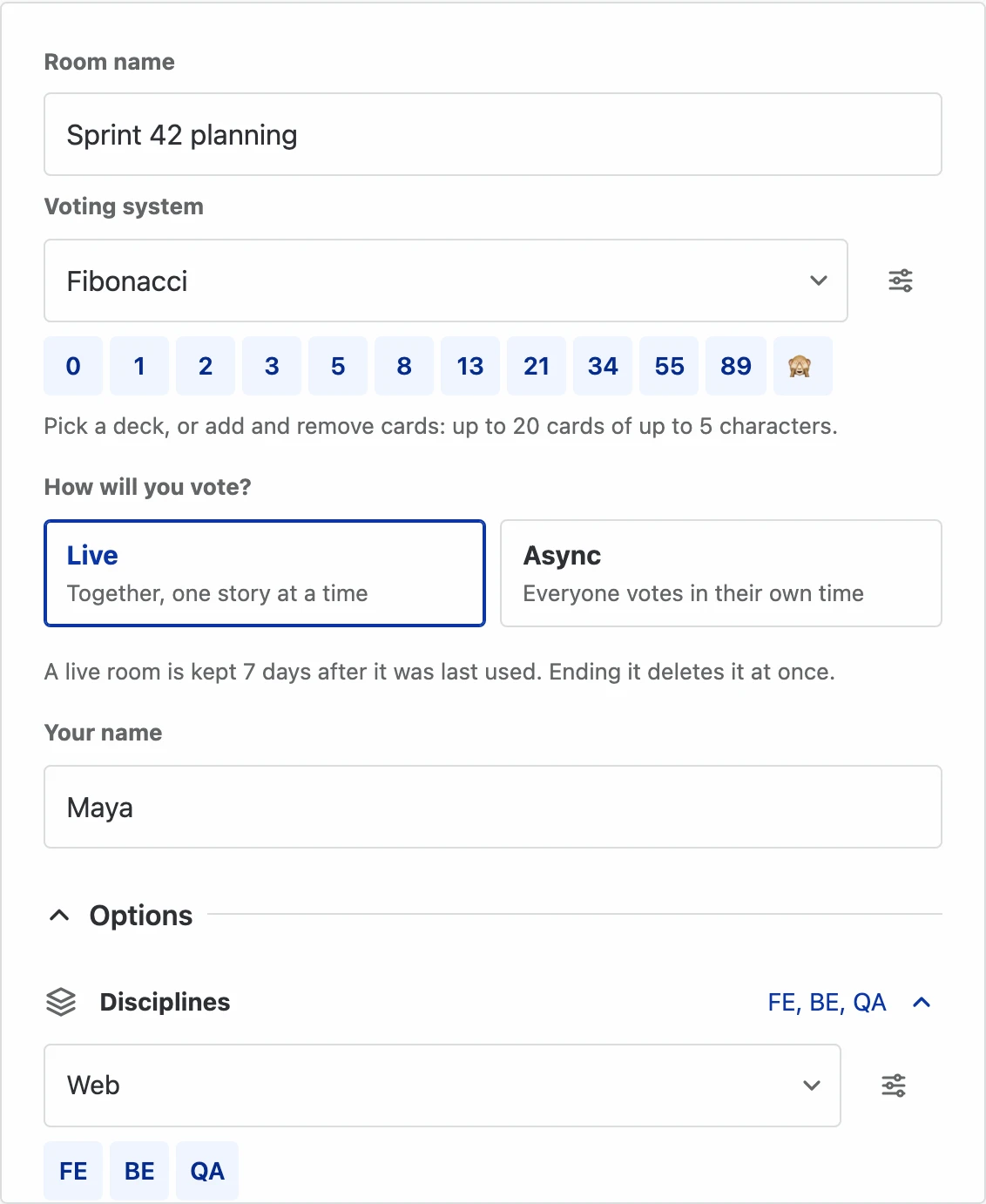
Name it, pick a deck, and you’re in.
Step 2 Invite the team
Share the link; they join with just a name.
Step 3 Vote in secret
Everyone picks a card; nobody sees the others.
Step 4 Reveal and save
Cards flip together and the estimate is saved.
New to it? Read what planning poker is, or just create a room and try it with your team.
Start in under a minute
- No accounts. Name the room, type your name, and you're in. Nobody needs a password or an email address.
- Invite with a link. Copy the invitation link and share it in your chat or meeting. Teammates open it, type their name and join, to vote or just to watch.
- Share in Telegram. The Invite button has a "Share via Telegram" row that copies the link or opens Telegram's chat picker, and teammates who open it land straight in the room, as a Mini App, with their Telegram name already filled in.
- Play in Discord. Start Storyvote as an Activity in a voice channel, and everyone who joins it lands in the same room with their Discord name already filled in.
- Play in Slack. Type /storyvote in a channel to post the room's card there, and everyone joins from it as their Slack selves.
- Play in Google Meet. Start Storyvote from Activities in a call, and the room opens on the main stage for everyone in it.
- Live or async. Estimate together on a call, or let everyone vote in their own time over hours or days.
- Options up front. Pick a deck, and add extra questions, disciplines, auto-reveal, anonymous voting or a room password when you create the room.
- Unlimited. As many rooms, players and stories as you need.
Voting
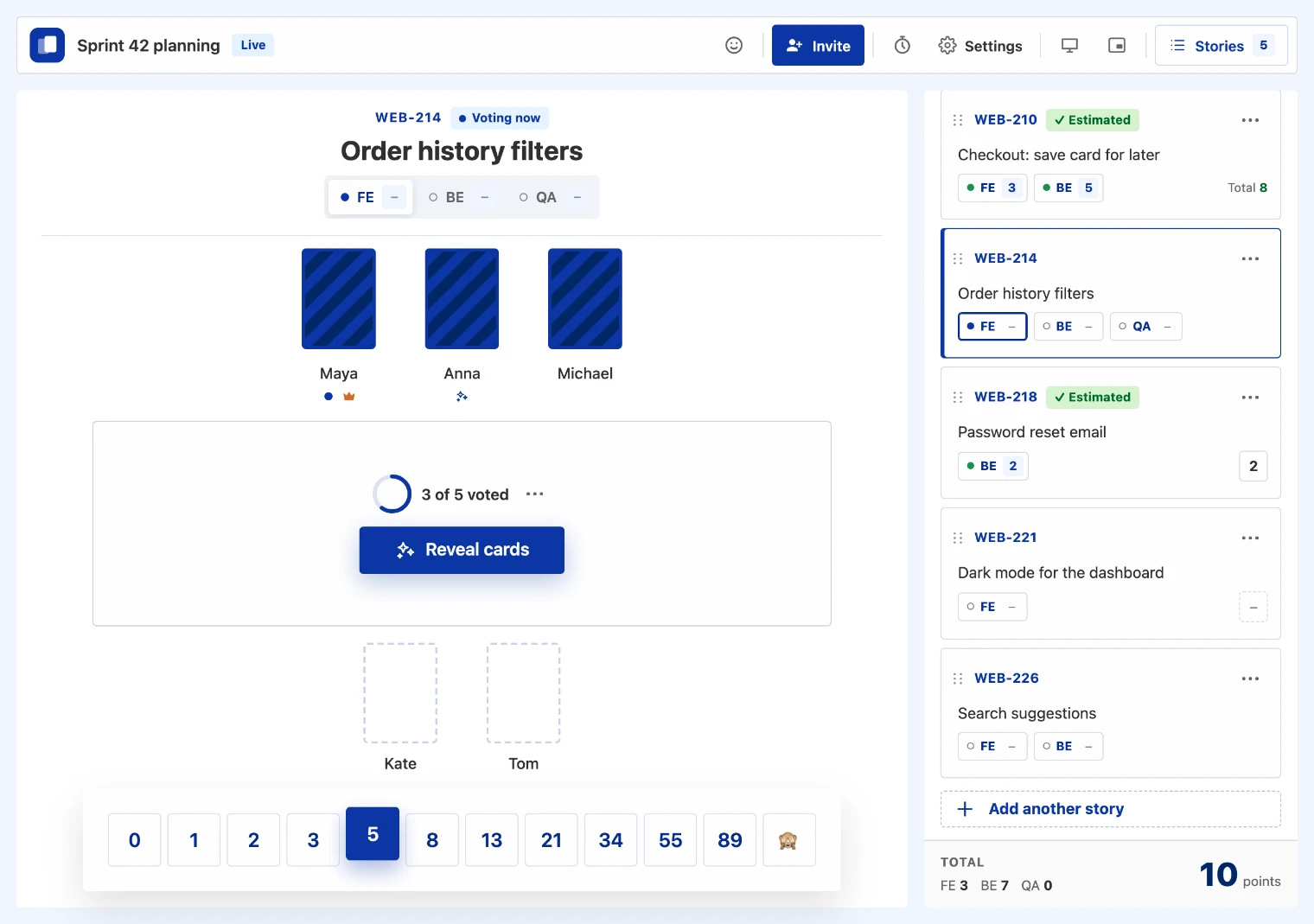
- Hidden votes. Cards stay face down until the reveal. Votes are kept on the server, so nobody can peek early, not even with developer tools.
- Reveal countdown. A short countdown runs before the cards turn over, and votes lock when it starts.
- Discussion timer. The host or a facilitator starts a clock for everyone from the top bar, up to an hour, and can add a minute, restart or cancel it.
- Auto-reveal. Turn it on in Settings and the cards turn over by themselves once everyone connected has voted, on the extra questions too, as long as the host or a facilitator is in the room.
- See who's ready. The table shows who has voted, without showing what. Teammates who lose their connection are greyed out until they're back.
- Spectator mode. Product owners and observers can join as spectators, or switch in Settings, and watch without voting, so they don't hold up the count.
- Change your mind. Pick another card or take your vote back any time before the countdown. After the reveal, anyone who voted can still change their card.
- Your seat, your options. Point at your own seat to change your vote once you've cast one. Point at someone else's to throw an emoji at them. Your name is in Settings.
- "🙈" and "?" cards. Ask for a break, or (in decks that have "?") say you're unsure. Neither counts towards the results.
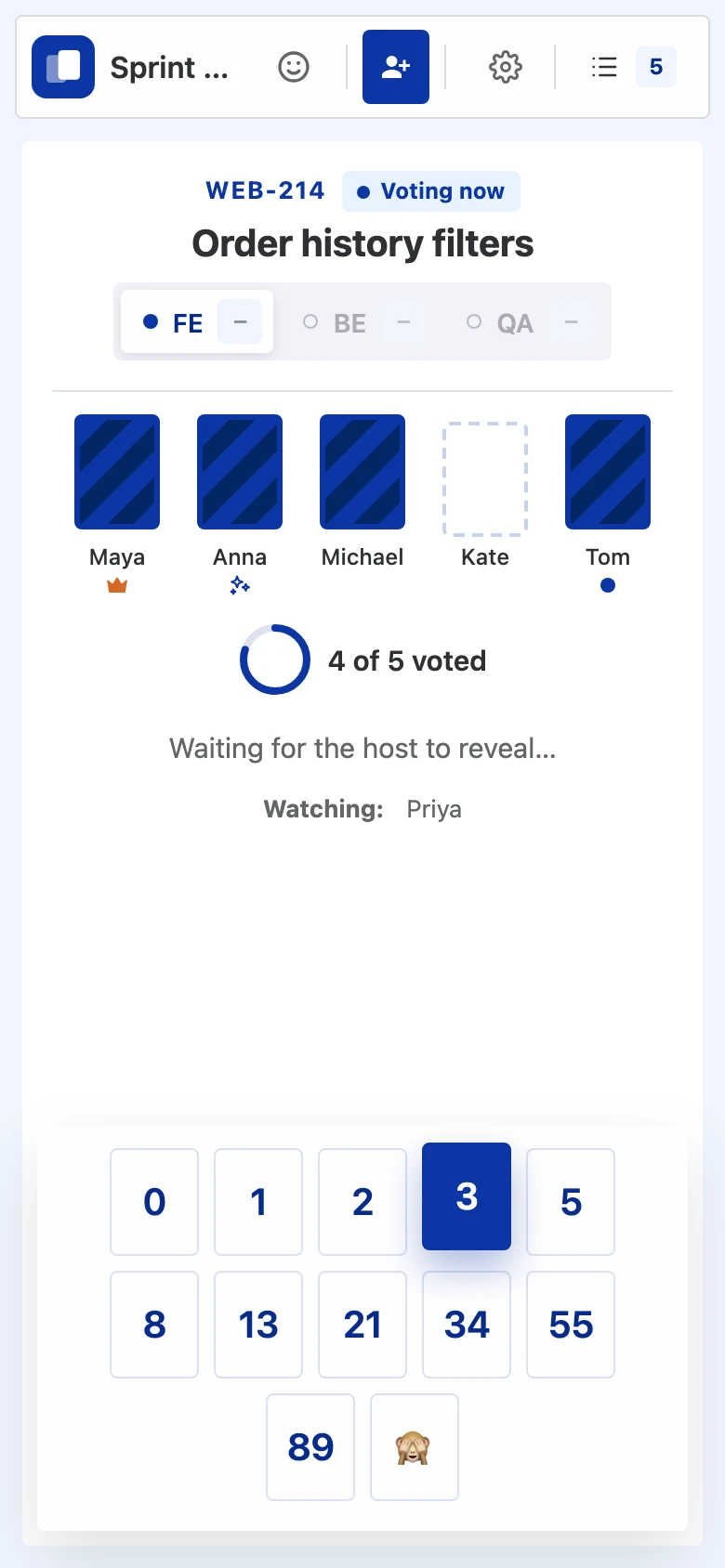
- On any device. It runs in any modern browser, on laptops and phones, and inside Telegram, Discord, Slack and Google Meet, with nothing to install. On a phone the seats sit in one compact row with the deck under them, so a round fits on the screen.
Fun features
Estimating is serious work, but the room doesn't have to be. Try them here:
Throw at a teammate
Point at a card, or tap it, and pick 👍, 🎾 or 🎯.
- Anna
- Ben
- Kate
Send to the room
Press one, again and again, and watch the left of your screen.
- Throw emojis. Point at a teammate's seat and throw a 👍 for a good call, a 🎾 when the ball is in their court, or a 🎯 for a spot-on estimate. It flies in, bounces off their card and falls away, for everyone in the room to see.
- Emoji reactions. Send a 👍, ❤️, 😂, 😮, 🎉 or 🤔 from the top bar, and it floats up the side of everyone's screen, as on a live stream. Nobody sees who sent it.
- Confetti on consensus. When everyone picks the same card, the room celebrates.
- Nothing stored. Reactions are passed on to the room as they happen and kept nowhere.
Chat Integration
Telegram Mini App
- Plan inside Telegram. Open @storyvoteappbot or a room's Telegram link and Storyvote runs right in the chat window, on phone or desktop, with nothing to install and no browser tab to find. It is still the same room.
- No name to type. Telegram tells Storyvote who you are, so you skip the name prompt and are in the room in one tap. You can still change your name in Settings.
- Share the room to a chat. Inside Telegram the Invite button's link and QR code are the Mini App link, so a group chat opens the room straight from your message.
- Everyone plays together. People in Telegram and people in a browser vote in the same room, with the same cards, discussion timer and results.
- Nothing extra stored. Storyvote receives your Telegram ID and the name you show there, signed by Telegram so it can't be faked, and nothing else: no phone number, no contacts and no messages.
More on how it works: scrum poker in Telegram.
Discord Activity
- Plan in your voice channel. Add Storyvote to Discord, then start it from Activities in a voice channel or call. It is still the same room.
- One room per channel. The first person in creates the room, and everyone who joins the Activity in that channel lands in it, without a link to pass around.
- No name to type. Discord tells Storyvote who you are, once you allow it, so you skip the name prompt. You can still change your name in Settings.
- Everyone plays together. The Invite button's "Invite to the activity" opens Discord's invite dialog, and its link and QR code bring in people in a browser, who vote in the same room.
- Nothing extra stored. Storyvote receives your Discord user ID and display name, and nothing else: no email address, no servers, no friends and no messages.
More on how it works: scrum poker in Discord.
Slack app
- Start a room from a channel. Add Storyvote to Slack, then type /storyvote and the room's name (start with "async" for an async room). The room's card appears in the channel straight away, with you as its host. It is still the same room.
- The room one click away. Clicking the room's card opens Slack's side panel, and its "Open in browser" opens the room. A room link pasted in Slack shows the same card.
- No name to type. Opened from its card, the room knows you by your Slack account, so you skip the name prompt. You can still change your name in Settings.
- Everyone plays together. The Invite button's link and QR code bring in people outside Slack, who vote in the same room.
- Nothing extra stored. Storyvote receives your Slack user ID and display name, and nothing else: no email address and no messages. Your workspace's access token is kept encrypted until the app is removed.
More on how it works: scrum poker in Slack.
Google Meet add-on
- Plan on your call. Add Storyvote to Google Meet, then in a call open Activities, pick Storyvote and press Start for everyone. The room opens on the main stage. It is still the same room.
- One room per meeting. Whoever starts it creates the room, and everyone who joins the activity in that meeting lands in it, without a link to pass around.
- No sign-up. Everyone types the name the others will see, and the browser remembers it for the next call. You can change it in Settings.
- Everyone plays together. Meet add-ons run in Meet on a computer; the Invite button's link and QR code bring in people on a phone or in a browser, who vote in the same room.
- Nothing from your Google account. Storyvote receives no email address, no contacts and no calendar, and only a one-way hash of the meeting's ID, never the ID itself.
More on how it works: scrum poker in Google Meet.
Presenting
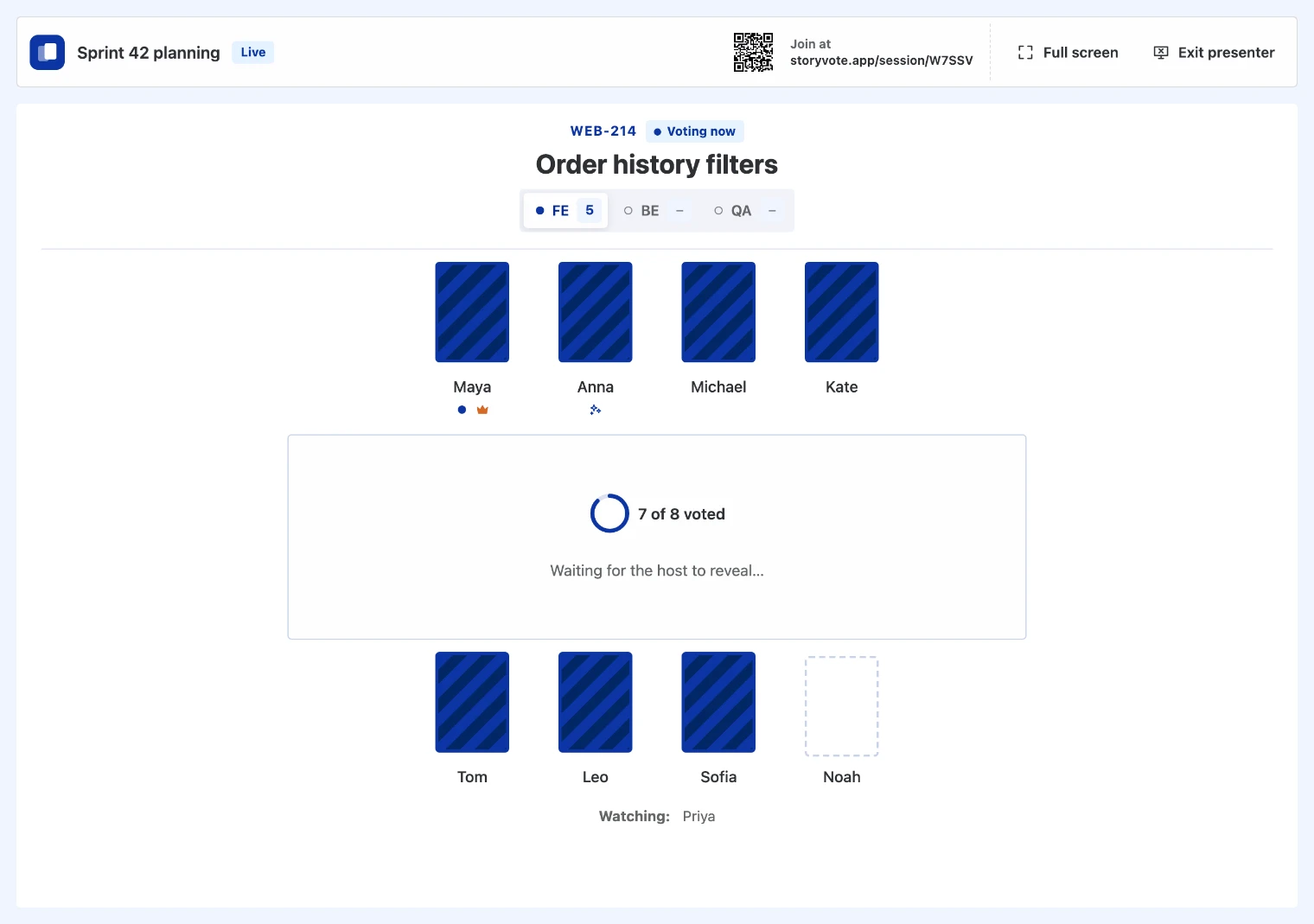
- A clean view for the shared screen. "Present" opens the room in its own window: the story, the seats, who has voted, the reveal and the results, with a QR code and the link to join. The deck, the game controls and Settings stay in your main tab.
- Full screen. Press "Full screen" in the presenter view to fill the display, and Esc to come back.
- Float the scoreboard (Picture-in-Picture). In Chrome and Edge on desktop, the Float button beside Present in the room's top bar puts a small always-on-top window over your other apps. It shows the story on the table, who has voted, the cards to vote with, the final estimate and, for the host and facilitators, Reveal and Next. Close it with its own ✕, or press the button again.
- Opens when you leave. With your browser's automatic Picture-in-Picture allowed, the scoreboard appears by itself when you switch to another tab, such as the ticket or your editor, so you can keep voting without coming back. It depends on the browser; the Float button always works.
Async rooms
- Vote when it suits you. Choose Async when you create the room. Every story opens for voting as it is added, and each person works through the list in their own time, so a team across time zones needs no shared call.
- Revealed when you are ready. A story's cards turn over when the host or a facilitator reveals it. Nothing is revealed just because everyone has voted, since someone may still be on their way.
- See what's waiting. The Stories button counts the stories still waiting for your card, story chips say "Your turn" or "Voted", and Next jumps to the next one.
- Your seat stays yours. Your identity is kept for 30 days after your last visit, so you can come back to the room tomorrow and carry on.
Extra questions
- More than one number. Ask any of Risk, Clarity, Agent-ready (could an AI agent build it, with a person, or only a person?) and AI tokens next to the estimate. Each has its own short row of cards, and a vote counts as soon as the estimate is picked.
- Answers saved with the story. The most-picked card of each question is saved on the story card and as a column in the CSV download. The more worrying answer wins a tie.
- One room. Switch them on at creation or later in Settings; the host or a facilitator can change them at any time.
Building with AI tools? See how teams use them for AI token estimation.
Card decks
- Fibonacci (0, 1, 2, 3, 5, 8, 13, 21, 34, 55, 89, 🙈)
- Modified Fibonacci (0, ½, 1, 2, 3, 5, 8, 13, 20, 40, 100, 🙈)
- T-shirts (XS, S, M, L, XL, ?, 🙈)
- Powers of 2 (0, 1, 2, 4, 8, 16, 32, 64, 🙈)
- AI tokens (10k, 25k, 50k, 100k, 250k, 500k, 1M, 2.5M, 5M, 10M+, ?)
- Risk (Low, Med, High, ?)
- Clarity (Clear, Gaps, Vague, ?)
- Agent-ready (Agent, Pair, Human, ?)
- Custom: your own cards, such as "1, 2, 4, 8" or "Easy, Hard": 2 to 20 cards of up to 5 characters each.
The host or a facilitator can switch decks at any time; open votes are cleared when the deck changes.
Results
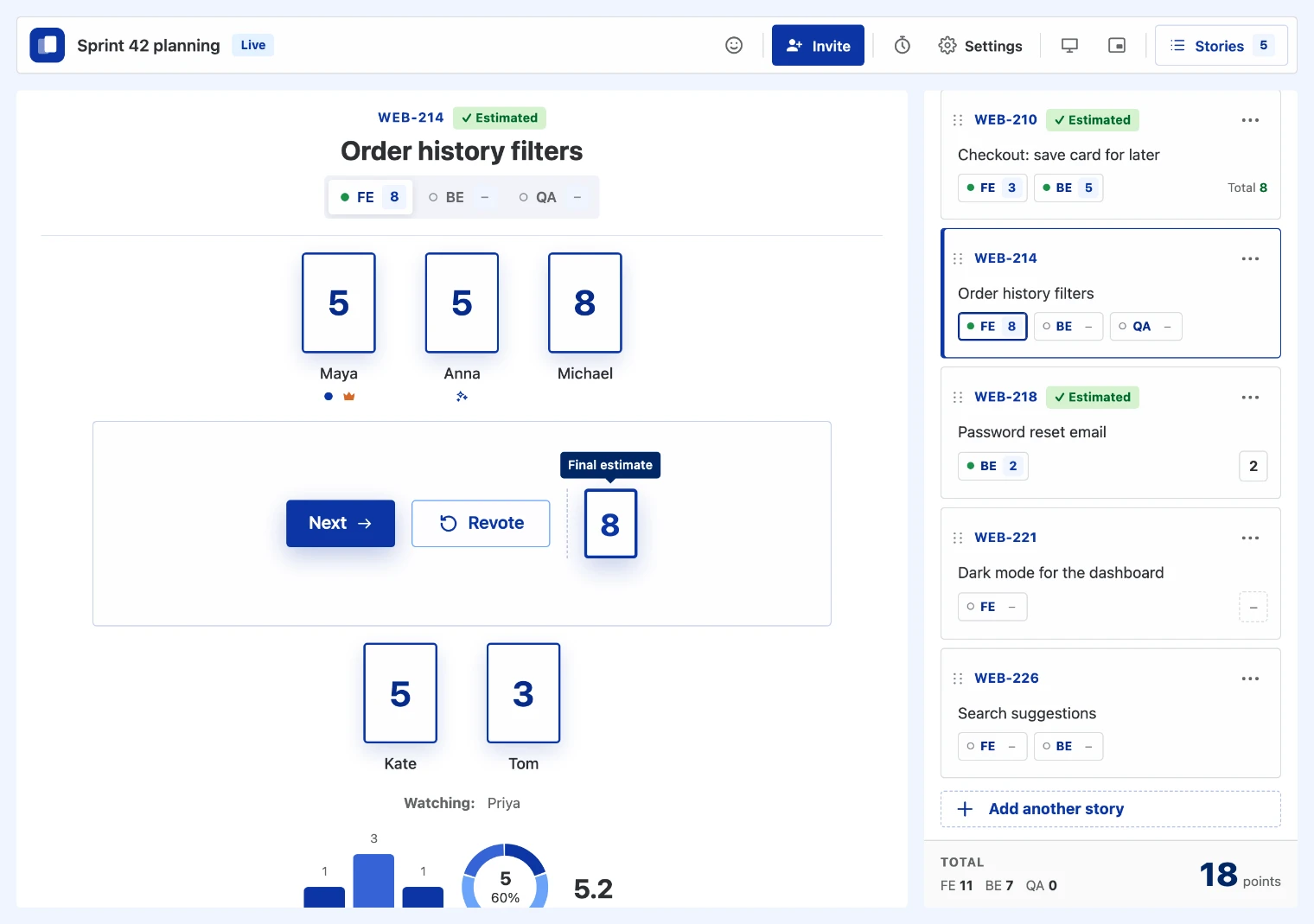
- Charts at a glance. A bar chart of votes per card, the most-picked card with its share of the votes, and the average for numeric decks.
- Consensus and spread. When everyone picks the same card, Storyvote says so, with a little confetti. Votes far apart are flagged as a large spread, the cue to talk.
- Estimates saved for you. The smallest card at or above the average is saved as the story's estimate the moment the cards are revealed, and it follows any card changed afterwards. The host or a facilitator can pick a different value with one click, and then it stays.
- Revote or look back. Revote starts a story over after a discussion. Any estimated story can be opened from the queue at any time, with its cards, charts and estimate, while the table stays where it is.
Stories and disciplines
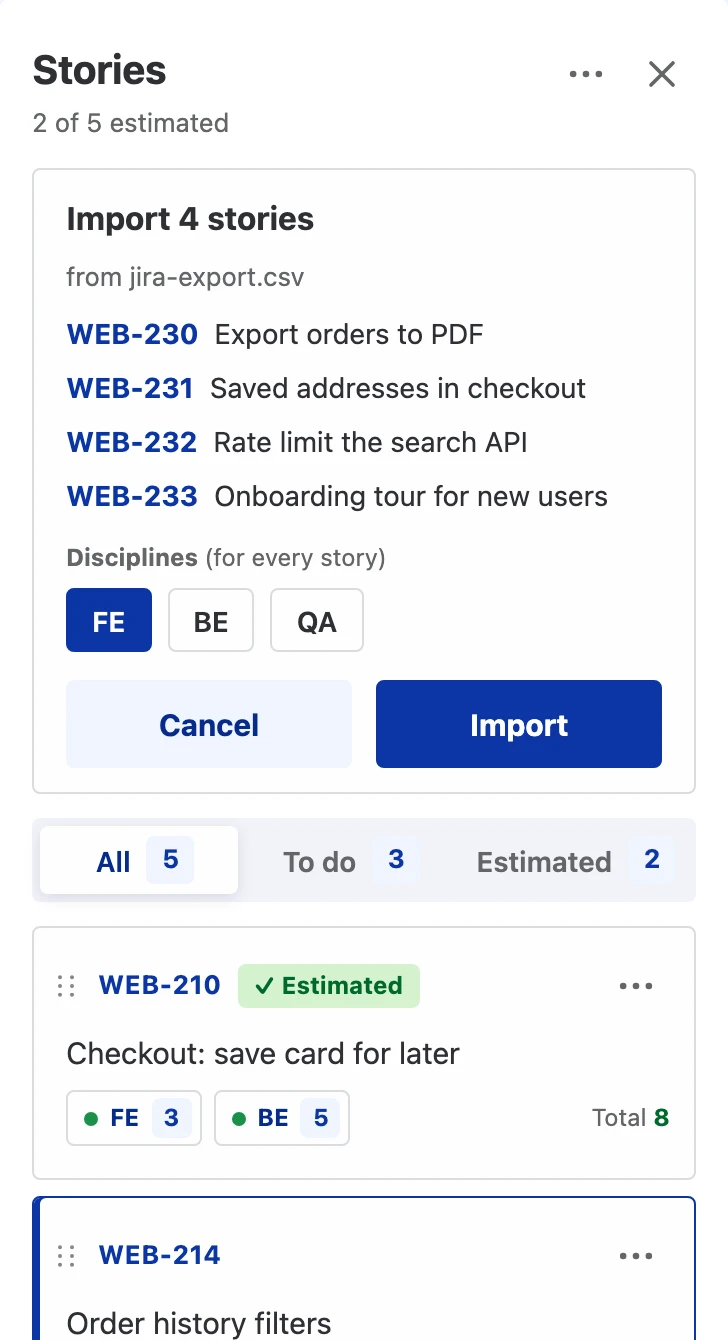
- A stories panel lists everything to estimate, with ticket keys such as PROJ-123 and a running total of saved estimates. Stories without a key are numbered S-1, S-2, and so on.
- You choose the order. Stories wait in a queue: Next takes the next one, a drag (or Move up and Move down) changes the order, and any story can go on the table straight away. A story you skip waits its turn again, as if never voted on.
- Edit or delete stories at any time, or clear the whole list.
- Estimates per discipline. Choose up to 6 disciplines for a room, for example FE, BE and QA. A story can be split so each discipline votes and gets its own estimate, and the panel adds them up into the story's total.
Import and export
- Import from Trello. The host or a facilitator connects the room to Trello (Stories "⋯" → Import from a tracker, then a sign-in on Atlassian's own page), picks a board and a list, and imports its cards as stories; cards already in the room are left out. Each story links back to its card.
- Estimates back on the card. A few seconds after a Trello story's final estimate is set, it is added to its card as a comment, and that comment is edited if the estimate changes. The connection belongs to the room, not to anyone's account, and its tokens are deleted when the room ends. How to use Storyvote with Trello.
- Import from Jira. The same for Jira Cloud: connect the room, pick a project and its backlog, active sprint, future sprints or every open issue, and tick the issues to import. Each becomes a story with its key (PROJ-123) as the ticket, and its final estimate goes back to the issue's story points field and a comment, both updated if it changes. How to use Storyvote with Jira.
- Import from Linear. The same for Linear: connect the room, pick a team and its backlog, current cycle, next cycle or every open issue, and tick the issues to import. Each becomes a story with its identifier (ENG-123) as the ticket, and its final estimate goes back to the issue as a comment and, when it is on the team's scale, as its estimate. How to use Storyvote with Linear.
- Import from Asana. The same for Asana: connect the room, pick a project and one of its sections or the whole project, and tick the open tasks to import. Each becomes a story linked to its task, and its final estimate goes back to the task as a comment and, where the task has a Story points field, into it. How to use Storyvote with Asana.
- Import from CSV. Bring in up to 200 stories at once, such as an Azure DevOps or Jira Server export (Jira's Summary and Issue key columns work as they are). Comma, semicolon and tab-separated files all work, repeated rows are skipped, and you see a preview first.
- Download as CSV. Everyone can download the stories with their disciplines and estimates. The file opens in Excel with proper columns, on Windows and Mac.
- A last chance to save. When the host ends and deletes the room, the results can still be downloaded from the "Session ended" page.
- Only what you connect. Storyvote reaches into no tracker unless you connect it, and then only into the boards, lists, projects and issues you pick.
Who can do what
| Action | Host | Facilitator | Everyone |
|---|---|---|---|
| Vote and see the results | Yes | Yes | Yes |
| Rename yourself | Yes | Yes | Yes |
| Watch as a spectator | Yes | Yes | Yes |
| Throw reactions at others | Yes | Yes | Yes |
| Send emoji reactions to the room | Yes | Yes | Yes |
| Change your vote after the reveal | Yes | Yes | Yes |
| Download stories as CSV | Yes | Yes | Yes |
| Add, edit and import stories | Yes | Yes | No |
| Start voting and reveal the cards | Yes | Yes | No |
| Save or change an estimate | Yes | Yes | No |
| Set deck, extra questions, disciplines and auto-reveal | Yes | Yes | No |
| Run the discussion timer | Yes | Yes | No |
| Choose facilitators | Yes | No | No |
| Remove people from the room | Yes | No | No |
| End and delete the room, or hand it over | Yes | No | No |
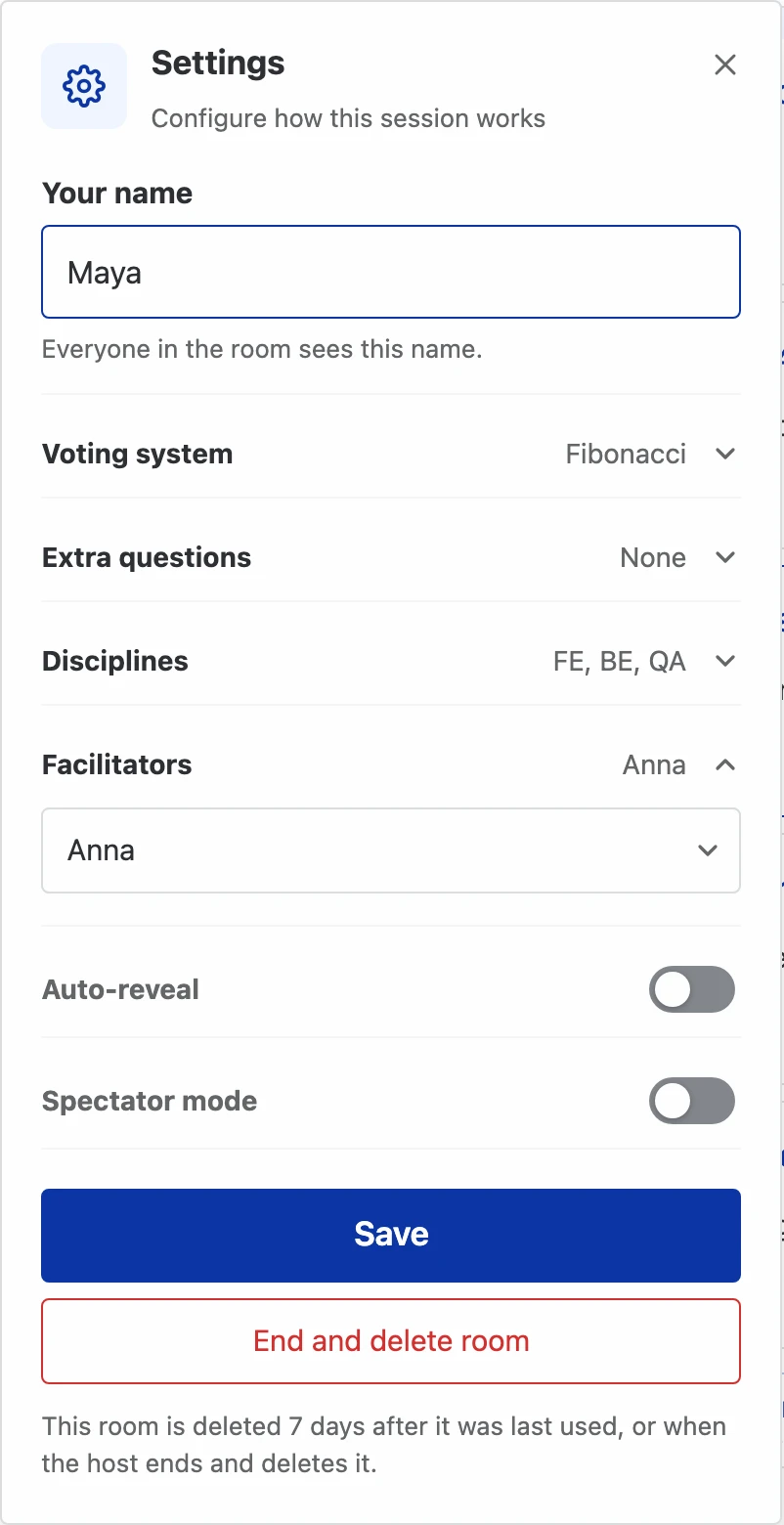
Whoever creates the room is its host. In Settings, the host can make anyone a facilitator, several people at once, so someone else can run the game while the host takes part, or stands in if the host's connection drops. Facilitators can also change the deck, extra questions, disciplines and auto-reveal, and run the discussion timer. The host removes someone from their seat. A host who has to go can hand the room to someone else instead of ending and deleting it, so the others carry on; closing the tab asks first, too.
Privacy options
- Anonymous voting. Turn it on when creating a room, and nobody ever sees who voted what, only how many people picked each card.
- Room passwords. Newcomers need the password to join; people already in the room rejoin freely. Wrong guesses are limited.
- Short-lived data. A room is deleted as soon as the host ends it, or 7 days after it was last used (30 days for an async room).
Read how Storyvote protects your sessions on the Security page.
What's next
More trackers (Azure DevOps, ClickUp), reminders for async rooms, session summaries and more are on our roadmap. Wondering how all this can be free? We explain why.
Try it now. Create a free room, share the link with your team, and start estimating in under a minute.
Enjoying Storyvote? A short review helps other teams find it.